
How To Use The GFLAI’s App To Control LED Bracelets?
Adhering to the tenet of exploration and innovation, we cherish the feedback received from every communication about remote control LED bracelets, LED lightsticks with customers and transform it into feasible solutions. After the unremitting efforts of the R&D team, the GFLAI’s official remote controlled App RF FUN now, is ready for use.
Function Overview
In order to meet the needs of small and medium-sized event planners, GFLAI developed “RF FUN” to provide professional technical support for the customers programlighting effects with the event promotions
Less Is More-Turning Your Phone To The Device Of Remote Controlling
Easy Operation
The app is as easy to operate as the handheld remote controller. All you need to do is to click the corresponding button in the APP to switch discoloration or flashing modes.
With clear icons and instructions, the app brings the operation to a new level of convenience.
Multifunctional Operation
Features the 15 colors and 19 flash modes on the APP, the app also allows you to do creative zoning, and is perfectly compatible with LED bracelets, LED lightsticks, and more.
There is the sound-activated mode: using an audio cable to connect DMX to audio equipment can also realize the voice control function, allowing DMX products to flash with the rhythm of music.
App Interface Introduction
Learn More About The App Interface
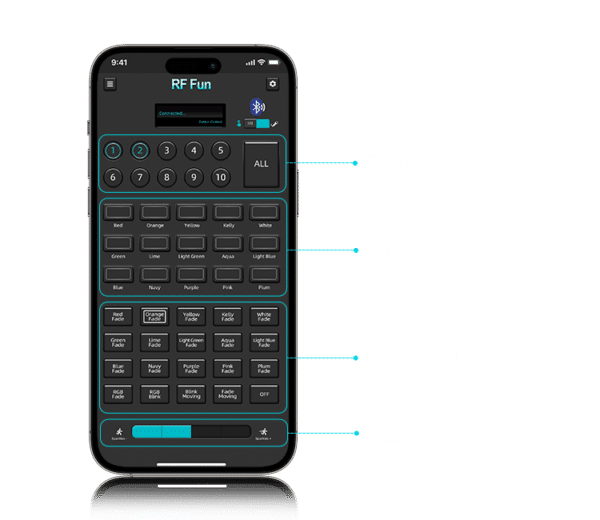
Part I: Zoning Control
In this section, you can control the remote control bracelets in different zones individually through different buttons, also you can control all bracelets at the same time.
Part II: Monochrome Display
There are 15 single colors in this section, you can combine this section with other sections to achieve the flashing effect you want.
Part III: Different Flashing Modes
We have pre-set 19 lighting modes in the APP, which can meet all the needs of small activities.
Part IV: Flashing Frequency
In this section, you can increase or decrease the flashing frequency to achieve the lighting effect you want.
Operation Guide
Learn How To Use The App

How To Use The App
Step 1: Download the APP
Step 2: With DMX turned on, open the APP and click the button in the upper left corner to enter the connected device entrance.
Step 3: Click Scan, find “G6S”, and connect
Step 4: Control LED products(take the APP control LED bracelets as an example) according to event needs
Watch The Video To Learn More
Support Page: https://www.trustvay.com/app3/rffun/support/